Blog Details
How to Get a Kids' App Approved on Google Play
If your app is meant for children, or simply appeals to them, Google Play treats it differently. It goes through the Families Policy, and small mistakes such as one advertising library or one missing setting can get an update rejected. We recently prepared Ankur, our own learning and play app for children from birth to 8 years, for Play, and these are the lessons we would share with anyone building for kids.
1. Decide your target audience honestly
In the Play Console you choose the age groups your app is for. If any of them is under 13, the Families Policy applies in full. Do not pick an older audience just to avoid the rules: if the content, characters or store listing clearly appeal to children, Google can treat it as a children's app anyway.
2. Be very careful with SDKs
Most rejections come from third-party libraries, not your own code.
- Ads: only ad networks that are self-certified for Families may be used, and ads must be suitable for children.
- Analytics and crash reporting: check that each SDK is allowed in apps for children and what data it collects.
- Advertising ID: apps aimed only at children must not collect it. We remove the permission explicitly in the Android manifest, so no library can add it back.
For Ankur we went further: no ads, no analytics and no internet permission at all in the release build. Our build pipeline checks the final APK, so a new library can never quietly add network access.
3. Write a privacy policy that matches reality
Play requires a privacy policy link in the listing and inside the app. It must describe what the app actually does. If you collect nothing, say so plainly, and explain what is stored on the device and how parents can delete it. Keep the Data safety form in the Play Console consistent with the policy; reviewers compare the two.
4. Put grown-up things behind a parent gate
Links that leave the app, settings, purchases and anything that shares data should sit behind an adult check, such as a simple sum or a press-and-hold that young children cannot easily pass.
5. Design for children, not just for compliance
Passing review is the minimum. A good kids' app also:
- avoids flashing, pressure, streaks and "you failed" screens;
- uses big touch targets and works without reading;
- lets parents set time limits;
- works offline, so it is safe on a phone without data.
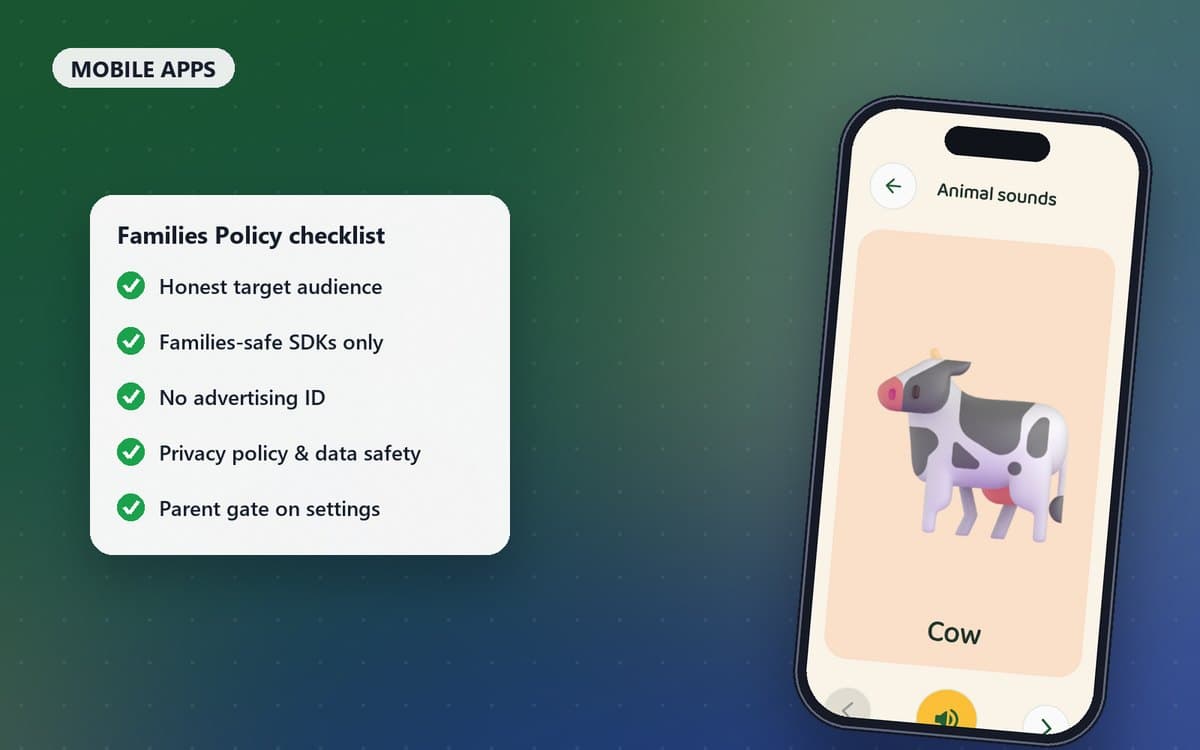
Our checklist before submitting
- Target audience and content settings completed honestly.
- Every SDK reviewed against the Families requirements.
- Advertising ID and unnecessary permissions removed.
- Privacy policy published and linked inside the app.
- Data safety answers match the privacy policy.
- Parent gate on external links and settings.
- Store screenshots and descriptions suitable for families.
Building an app for children, or a learning app for schools? We have done this end to end, from design to Play approval. Talk to us and we will help you get it right the first time.